
Piwigo 16 is coming to piwigo.com: discover what’s new!

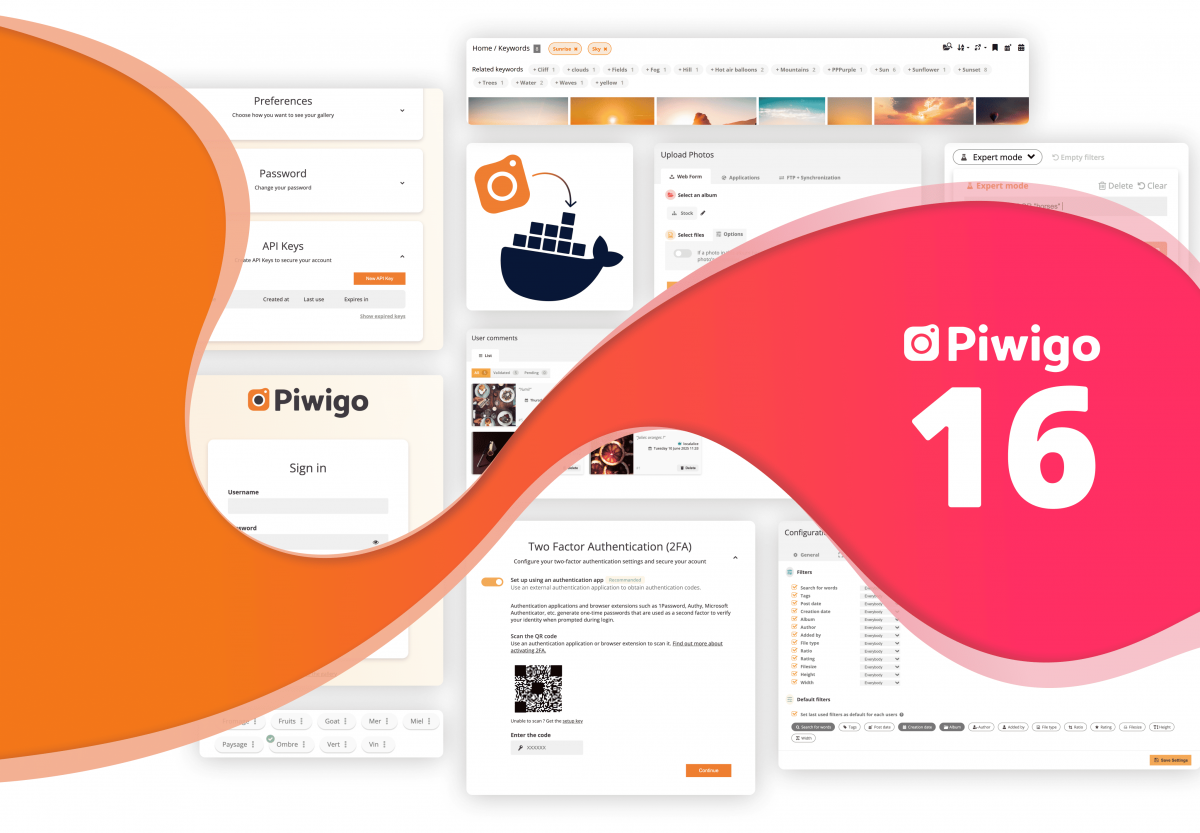
On November 24, 2026, we released Piwigo version 16. Visual redesigns and UI improvements, two-factor authentication, enhanced search filter management… let’s take a closer look at what’s new in this release, which will soon be available to all piwigo.com customers.
New design for “common” pages
With Piwigo 16, you can enable a new option that applies a modern design to pages shared across all themes (login, profile, password recovery).
Until now, each theme provided its own design for these pages, which could sometimes cause issues—especially when new features were introduced and were not compatible with certain themes. This could also be problematic when using plugins that modify these pages but are not compatible with your theme.
To address this, we designed a new theme-independent layout that modernizes these pages and ensures compatibility with all future Piwigo versions.
Here’s what the profile page now looks like in your gallery:
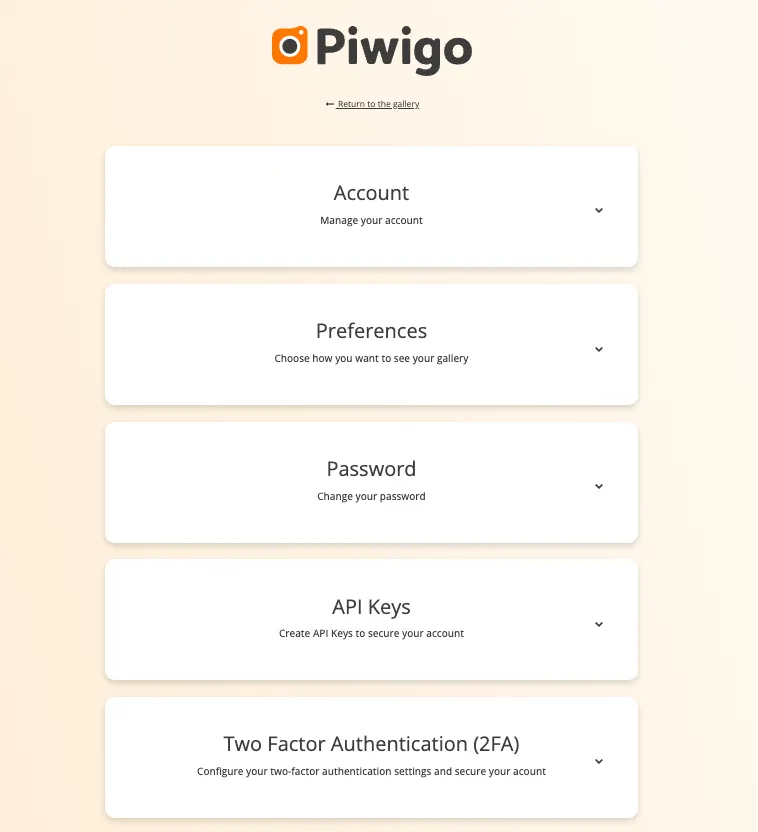
By clicking on a section, you can expand it to display the related fields.
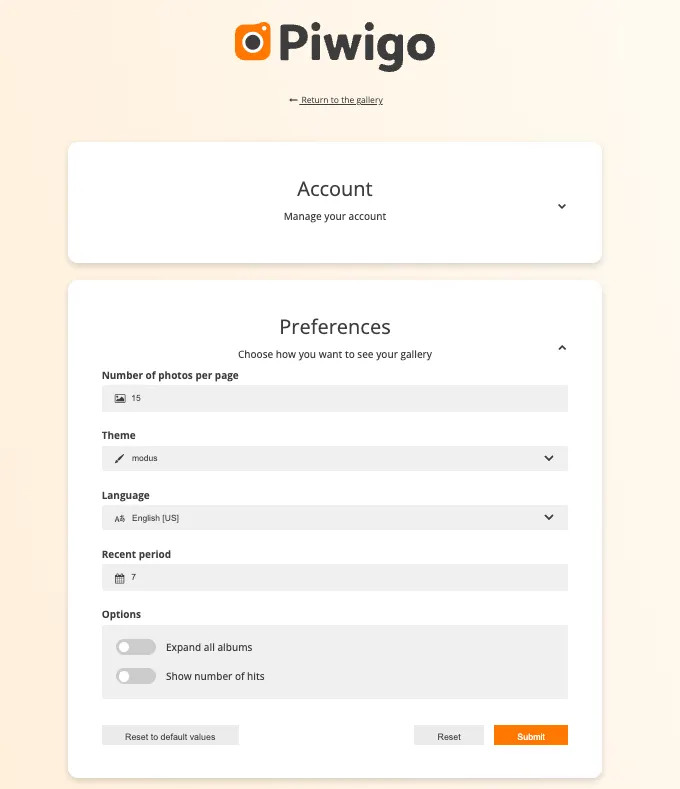
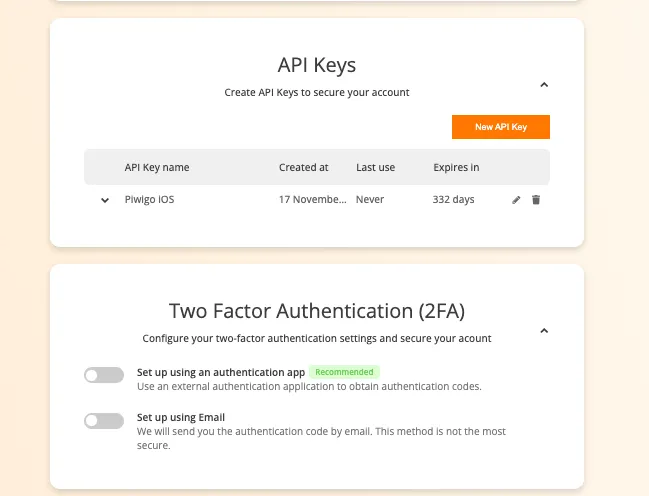
This page also includes some of the new features introduced in Piwigo 16, which we’ll cover later on:
- Two-factor authentication
- API keys
If you prefer to keep your theme’s original design for these pages, simply go to Administration > Configuration > Options and uncheck “Use standard Piwigo template for common pages.”
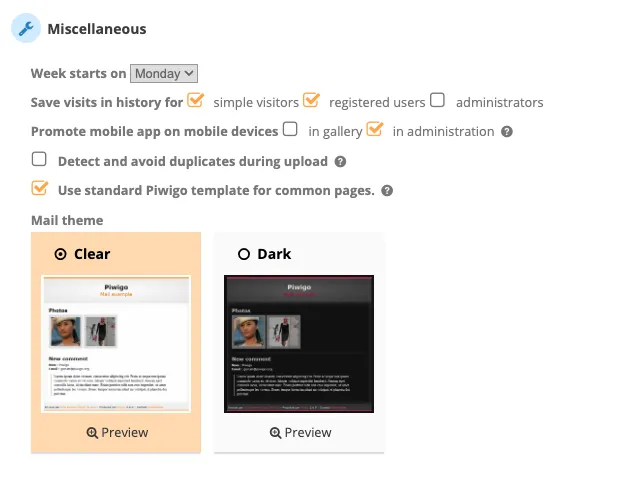
From version 16.2.0 onwards, this setting will be moved to the Administration>Configuration>Themes>Standard Pages page.
Introducing two-factor authentication (2FA)
Since 2022, a “Two-factor Authentication” plugin has been available, allowing users to receive a one-time code by email to secure their Piwigo login. However, this plugin was incompatible with mobile applications and any scripts using the Piwigo API.
We therefore released a brand-new plugin to strengthen this feature:
- Compatibility with Piwigo mobile apps
- Support for one-time codes via a dedicated TOTP app (such as 1Password, Authy, Microsoft Authenticator, etc.)
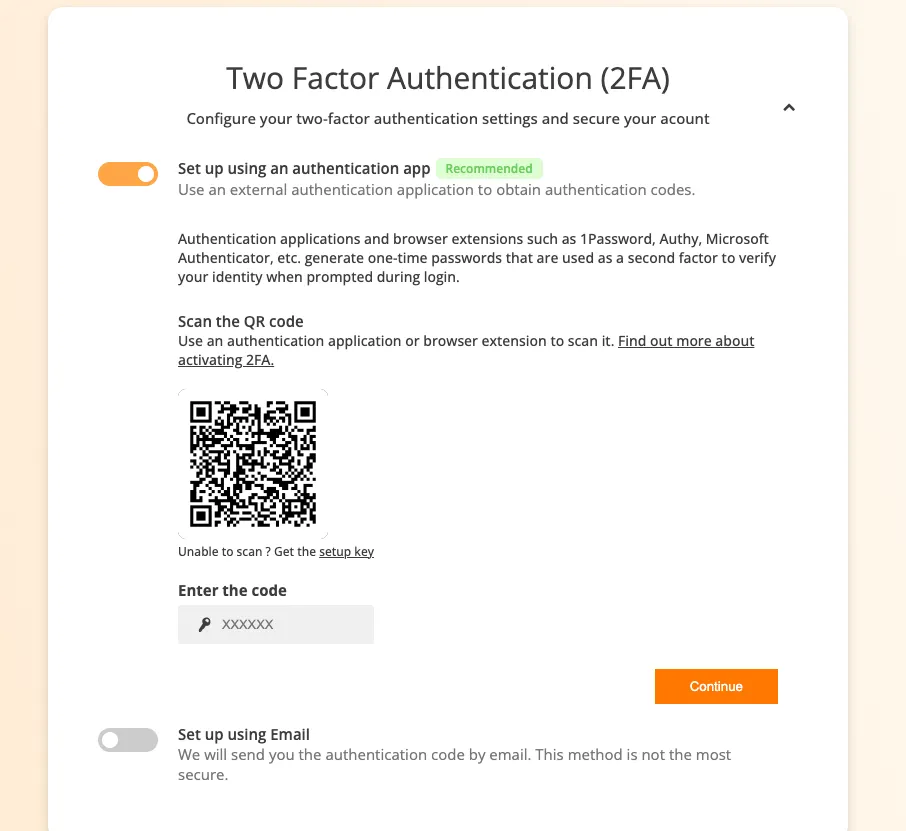
Of course, you can choose whether or not to enable this feature on your gallery, select the available recovery methods (email and/or authentication app), and configure additional options such as the maximum number of failed attempts before account lockout.
Each user can then decide, from their profile page, whether or not to enable two-factor authentication for their account.
Everything is explained step by step in the dedicated documentation.
⚠️ Two important things to know before enabling 2FA on your Piwigo:
- When 2FA is enabled, third-party applications will no longer be able to connect using just a username and password. If a user enables 2FA and wants to continue using the Piwigo mobile app, Piwigo Remote Sync, or the Lightroom export plugin, they will need to create an API key. Full details are available in the documentation.
- At the moment, theme-based login and profile pages do not implement 2FA. To use it, you must enable the standard Piwigo pages (see the previous section).
New design for related tags
We decided to improve the display of related tags. We believe—and always have—that this is a powerful feature offered by Piwigo and one that is still uncommon in other photo management software. This new design encourages its use, and we hope you’ll enjoy rediscovering related tags.
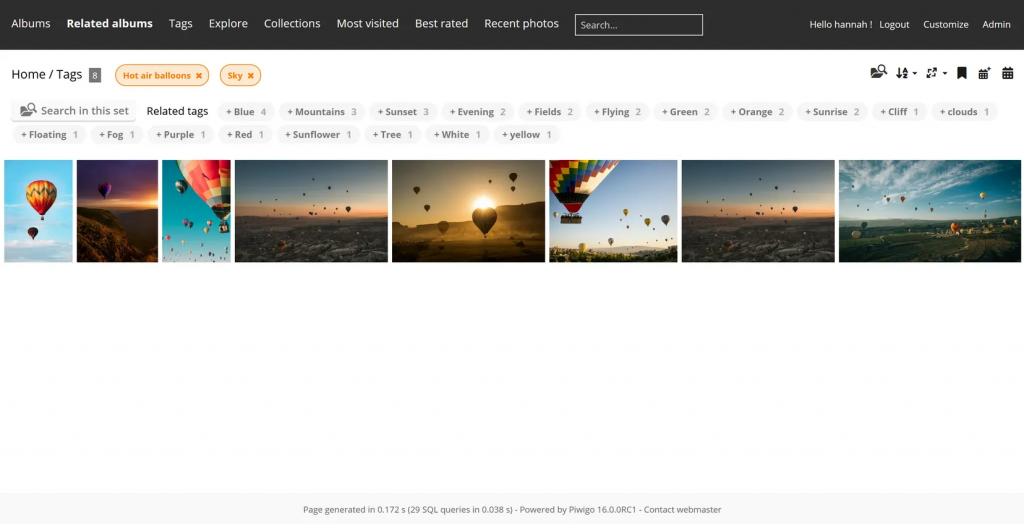
When you open a tag page, related tags now appear as badges, allowing you to combine them with the current tag in a single click.
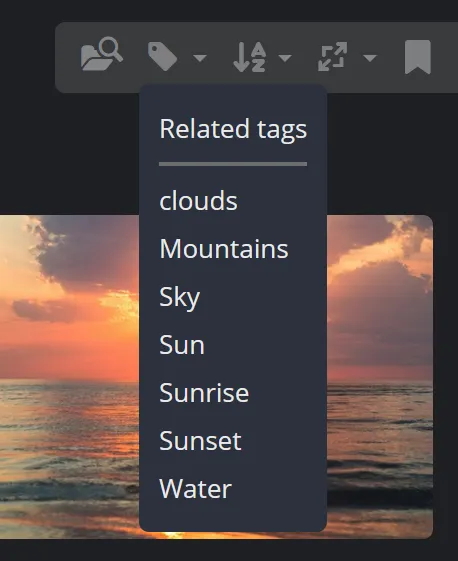
On all thumbnail pages, you’ll also find a dropdown menu for related tags in the batch actions area (on the right-hand side when using the Modus theme).
Customizing available search filters
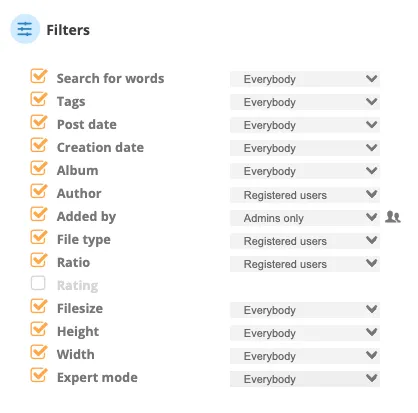
We listened closely to your feedback following the introduction of the new search filters in Piwigo version 14.
Until now, four search filters were enabled by default for everyone, and users could choose to display additional filters if needed.

With Piwigo 16, administrators can now choose which filters are enabled by default.

They can also define who is allowed to use each filter (everyone, registered users only, or administrators only).
Expert search mode
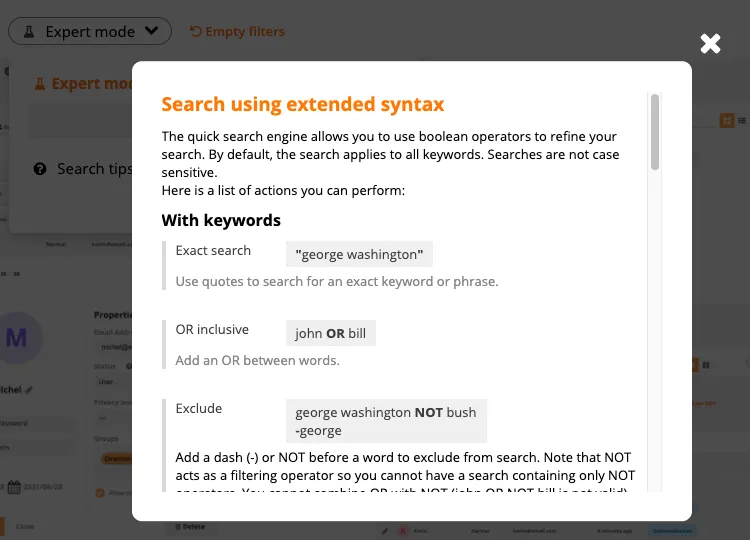
Another improvement to gallery search: you can now enable Expert mode, which allows you to refine your search by excluding words, searching for exact matches, and using many other advanced options.
Expert mode was already available in the administration interface; we’ve simply made it accessible to everyone and improved the help window explaining how to use it.
New look for comment manager
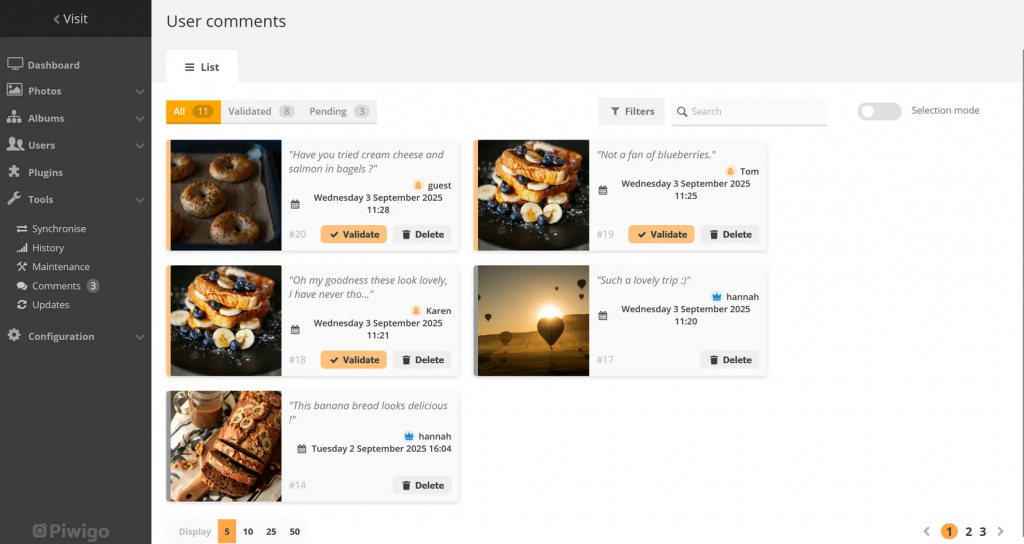
The comment manager has been redesigned to be both easier to use and more visually clear.
The new layout makes it easier to distinguish comments that are still pending approval from those that have already been validated. A selection mode also makes it easier to process comments in bulk.
New activity filters
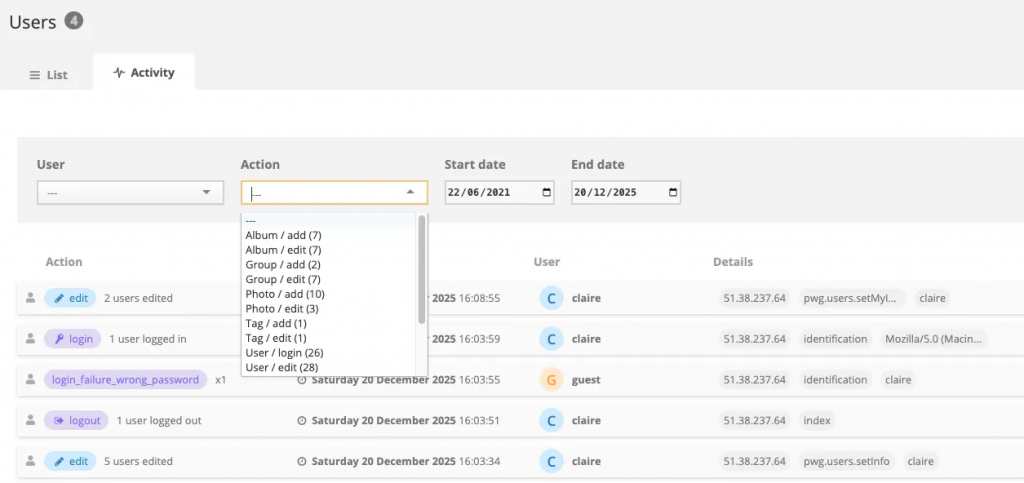
The activity list is a useful way to see who performed an action (import, deletion, etc.) on your gallery.
Until now, activities could only be filtered by user.
With Piwigo 16, you can now also filter activities by type—and most importantly, by date.
Bulk image updates
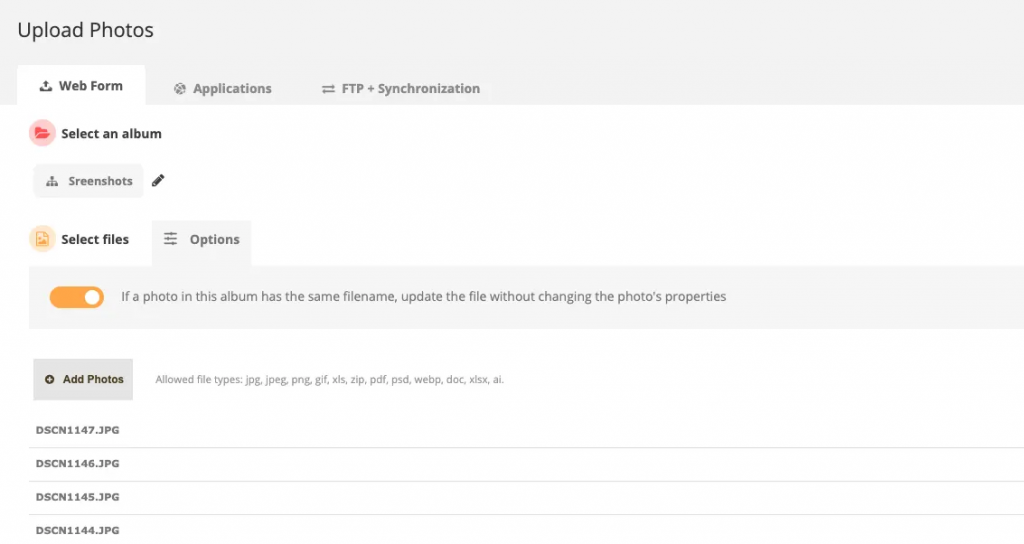
On the photo import page, you can now enable an option to update a batch of photos in one go.
Among the uploaded photos, Piwigo will detect files in the same album with the same filename. The image itself will be updated visually, while its properties (title, tags, description, etc.) will remain unchanged.
Other new features
To discover all the improvements introduced in Piwigo 16, we invite you to visit the Piwigo 16 presentation page.
What do you think? Feel free to share your feedback in the blog comments or on the forum!
